PDF Compressor
Just Drop and Go - Reduce your PDF file size without losing quality. Upload your file, compress it in seconds, and download the smaller result. Learn how to compress PDF →
What is PDF compression
PDF compression is the process of reducing the storage footprint of a PDF file by optimizing and re-encoding its internal resources — principally images, embedded fonts, and stream objects — while aiming to preserve the document's visible appearance. Compression helps when you need faster transfers, lower storage costs, or to meet attachment limits without having to manually edit or recreate the document in external applications.
How compression works
Under the hood, a compressor inspects the PDF's object tree, identifies large embedded binaries (for example, raster images and redundant font subsets), and rewrites those resources with more efficient encodings. There are two broad strategies: lossless optimizations (which repackage streams and remove unused objects without altering pixel data) and lossy image recompression (which reduces image fidelity in exchange for significant size savings). Good compressors select the least-destructive option based on the content type and configured quality targets.
Design tradeoffs
- Quality vs. Size: Aggressive, lossy recompression reduces bytes but can visibly affect photographs and scanned documents. For archival or print-ready assets prefer conservative, lossless steps; for web delivery, more aggressive settings often make sense.
- Speed and Resource Use: Compression of large, image-heavy PDFs is CPU- and memory-intensive — server-side processing can provide more consistent performance for very large files than client-only approaches.
- Predictability: Different PDF producers embed resources differently; results vary depending on how the original was generated.
Practical recommendations
- Prefer lossless steps when exact visual fidelity is required (legal, regulated, or archival content).
- For scanned or photographic PDFs, try a mild lossy recompression first and review the output visually before further reductions.
- Keep a copy of the original file until you confirm the compressed output meets your needs.
What it does
- Compresses PDFs by optimizing embedded images and streams.
- Reduces file size while preserving text and structural metadata when possible.
- Produces a smaller, downloadable PDF suitable for sharing and storage.
Useful when
- need to send PDF file but the file size is over email attachment limits.
- save disk space.
- prepare documents for email or web publishing.
Comparison
- Quick and easy — no local software required.
- Server-side processing may be more consistent for large or complex PDFs.
- Not a full editor — for advanced edits use desktop tools.
Privacy & retention
Uploaded files are processed on short-lived infrastructure and removed according to the app's retention policy. If you are handling highly sensitive documents, prefer local desktop tools or an on-prem solution that matches your compliance requirements.
When to use PDF compression
Use compression when you want to optimize documents for email, website publishing, or to save storage. Compression is particularly valuable for scanned documents, photo-heavy reports, or any content where embedded images dominate file size.
FAQs
- Q: Is my file private? A: Files are processed temporarily and auto-deleted according to the app's policy.
- Q: Will compression change layout or searchable text? A: No — compression focuses on images and streams while preserving textual content and layout in most cases.
- Q: Can I control compression level? A: This interface applies automatic heuristics; advanced presets are available in pro or expert modes in other tools.
- Q: What if the result looks worse? A: Keep the original and retry with milder settings or use lossless-only options.
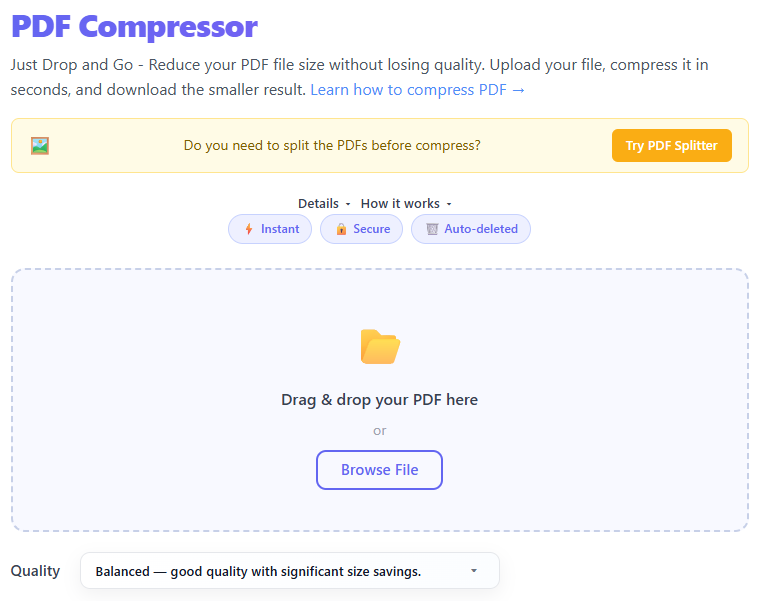
Upload a PDF using drag & drop or the browse button.
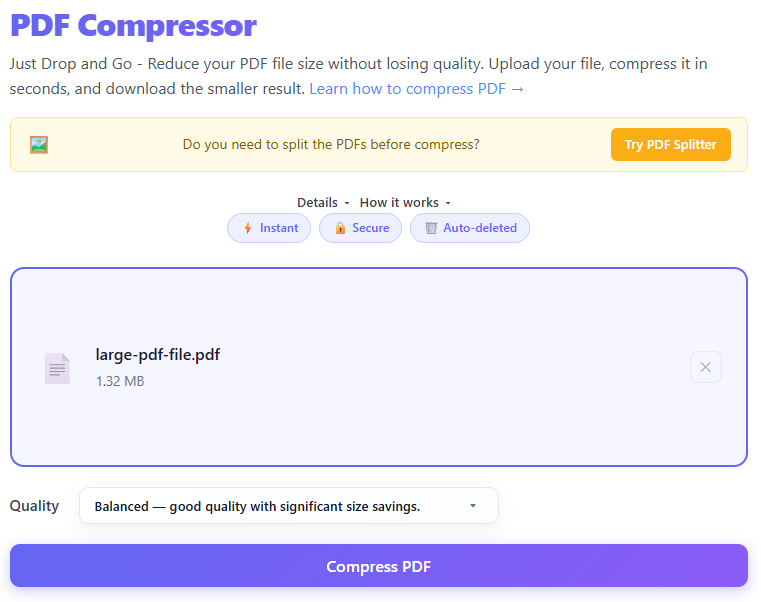
The file is sent to the serverless compressor which optimizes embedded images and streams.
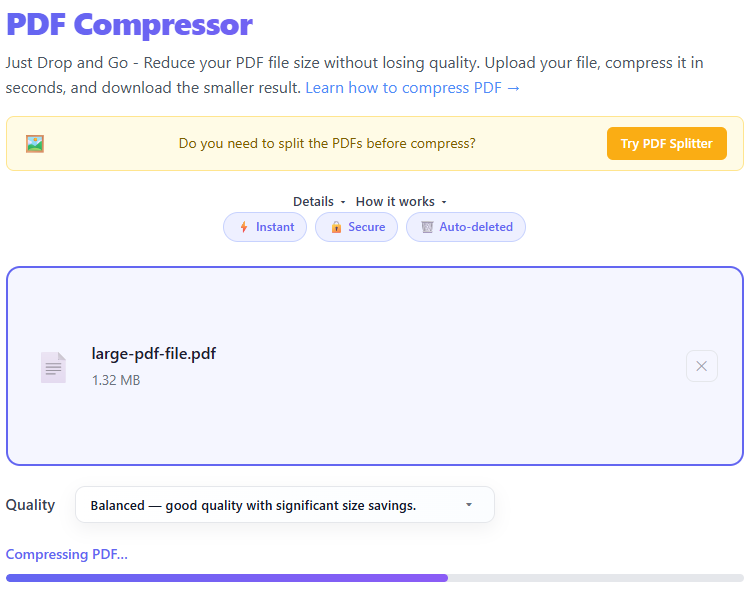
Compression progress is shown and the compressed file becomes available for download.
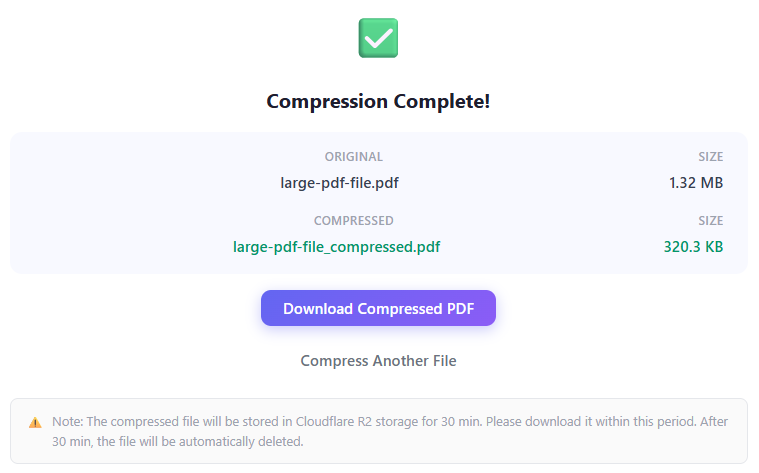
Download the compressed PDF before it is removed from temporary storage.
How to Reduce PDF File Size Without Losing Quality (Fast & Simple Guide)
You've probably run into this problem: "File size exceeds limit", email won't send your PDF, or an upload fails. Large PDFs are frustrating — but you don't need to recreate your file. This short guide explains why PDFs get large, how compression works, and how to reduce file size without ruining quality.
Why Are PDF Files So Large?
A PDF can contain much more than just text. Common reasons for large files:
- High-Resolution Images — images often use full resolution and are not optimized.
- Embedded Fonts — PDFs may include multiple full font sets.
- Scanned Documents — scanned PDFs are images saved as pages and can be very large.
- Uncompressed Elements — files created without optimization contain extra data.
What Does PDF Compression Do?
Compression reduces file size by lowering image resolution, removing unnecessary data, and optimizing internal structure — aiming for a smaller file while keeping acceptable visual quality.
When Should You Compress a PDF?
- Sending via email — avoid 20–25MB attachment limits.
- Uploading to websites — job portals, forms, and submissions often limit file size.
- Saving storage — smaller files save disk space and speed backups.
- Improving performance — smaller PDFs open and load faster on all devices.
Best Practices for PDF Compression
- Choose the right compression level — low compression keeps quality, high compression reduces size more.
- Optimize images first — resize/compress images before creating the PDF when possible.
- Avoid repeated compression — always keep an original copy; repeated recompression degrades quality.
- Know your purpose — printing needs higher quality; sharing can be smaller.
- Use a reliable tool — balance size and quality; try this compressor for fast results.
Common Mistakes to Avoid
- ✕Over-compressing important documents
- ✕Compressing already optimized PDFs
- ✕Ignoring readability after compression
- ✕Using low-quality scans as input
- ✕Not checking the final output
Step-by-Step: How to Compress a PDF
- Upload your PDF file
- Choose compression level
- Start compression
- Preview the result
- Download the optimized file
Real-World Use Cases
- Job applications — upload resumes within limits
- Business documents — share reports efficiently
- Student assignments — submit without upload errors
- Mobile sharing — avoid long download times
PDF Compression vs File Splitting
| Feature | Compression | Splitting |
|---|---|---|
| Goal | Reduce size | Break into parts |
| Keeps file intact | ✅ Yes | ❌ No |
| Best for | Email, uploads | Large document sharing |
Tips for Better Results
- Use clear, high-quality originals
- Avoid unnecessary images
- Keep formatting simple
- Test different compression levels
FAQ
Does PDF compression reduce quality?
Yes — but good tools minimize noticeable loss.
How much can I reduce file size?
It depends on content: image-heavy PDFs see large reductions; text-only PDFs see smaller changes.
Can I reverse compression?
No — compression is usually permanent. Keep originals.
Conclusion
Large PDFs don't have to slow you down. Use proper compression techniques to share files, meet upload limits, and improve performance without sacrificing usability.