PDF Compressor — Reduce PDF File Size Quickly
A short guide to using the PDF Compressor tool on THRJ. Learn the simple workflow, tips for best results, and privacy details. Open the PDF Compressor
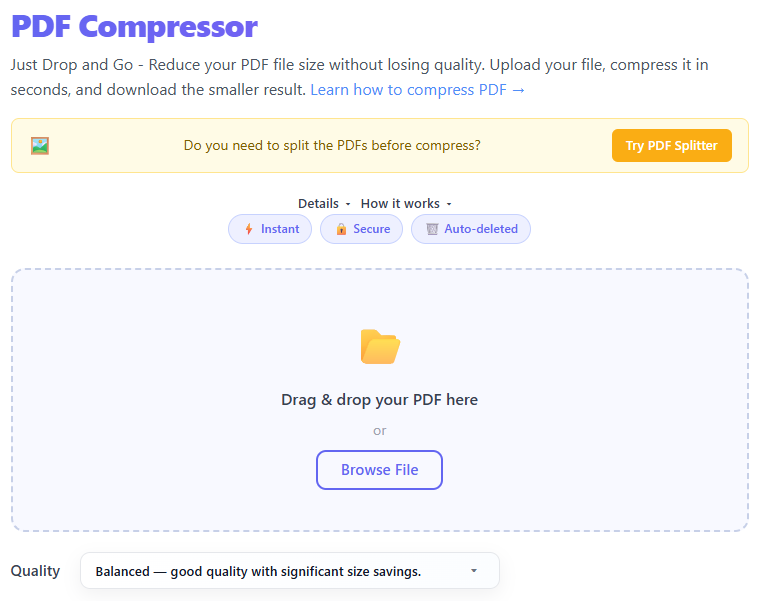
Overview
PDF Compressor lets you shrink PDF file sizes to make them easier to share, upload, or archive — all from your browser. The tool balances size reduction with readable output and supports single or multiple PDFs.
Video walkthrough
Quick Steps
- Open the PDF Compressor page:
/pdf-compressor. - Drag & drop a PDF file onto the uploader, or click to browse and select files.
- (Optional) Choose a compression preset: High Quality, Balanced, or Maximum Compression.
- Click Compress and wait for the process to finish.
- Download the compressed PDF when the tool finishes processing.
Step-by-step with screenshots
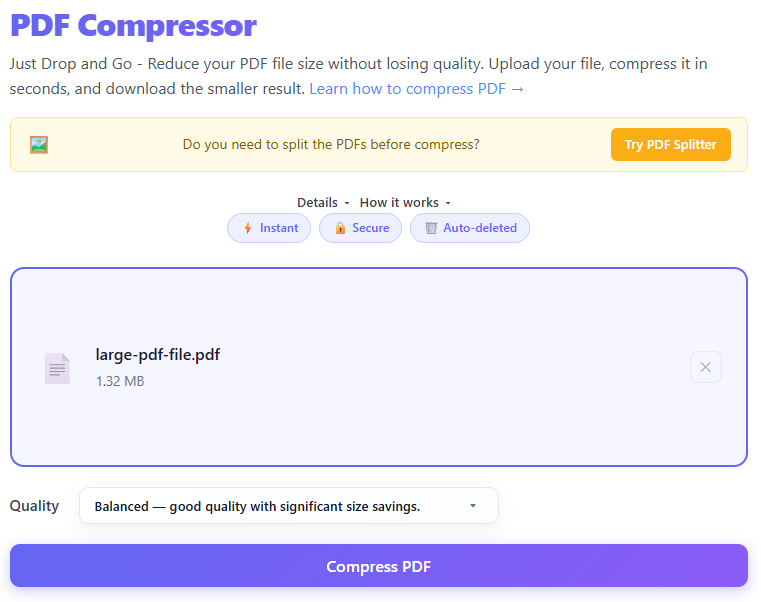
1. Upload your PDF
Drop a PDF or click the upload area to select one from your device. The uploader shows filename, original size, and a brief preview when available.
2. Pick a preset
Choose a preset depending on how much quality you want to preserve: High Quality (minimal loss), Balanced (good trade-off), or Maximum Compression (largest size reduction).
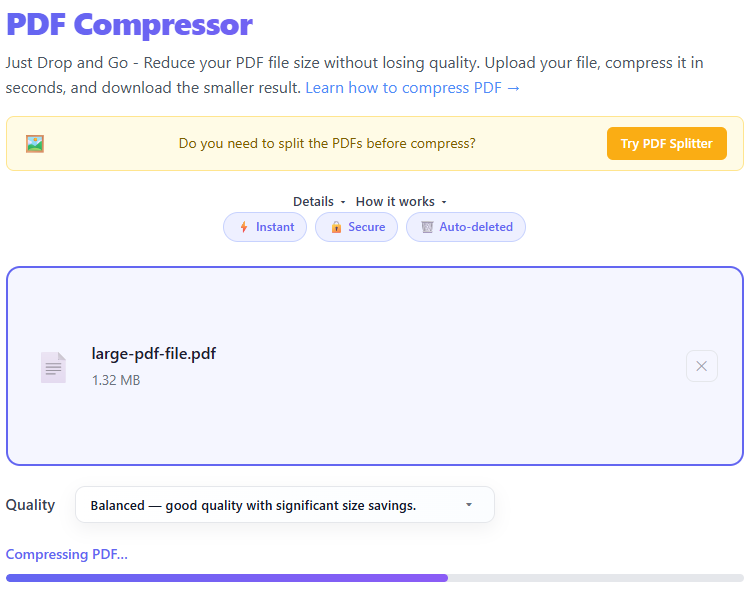
3. Compress and download
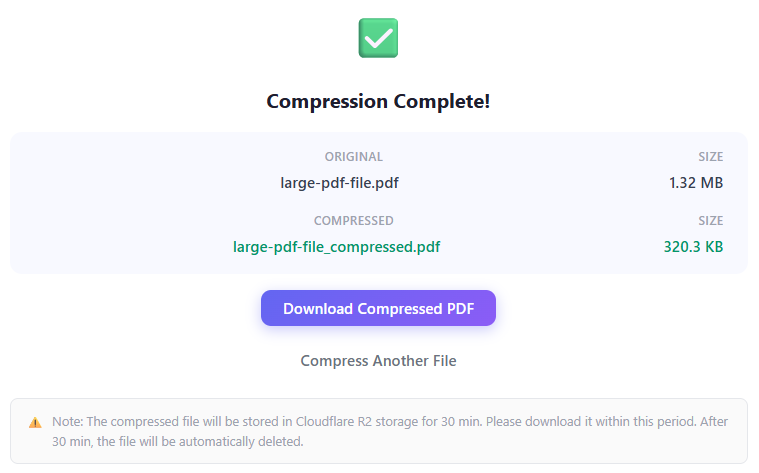
Click Compress. A progress indicator shows processing status. When finished, a download button appears for the compressed file.
Tips for best results
- Try Balanced first — it often gives the best trade-off between quality and size.
- If the PDF contains many high-resolution images, expect larger savings from presets that downscale images.
- For documents with mostly text, compression yields smaller improvements — consider OCR or other approaches first.
- Keep an original copy before applying aggressive compression.
Privacy & retention
Files uploaded to the service are handled with privacy in mind. Compressed files are available for download and are removed from temporary storage after a short retention window. For maximum privacy, use the tool with small files so processing can occur entirely in your browser.
Supported inputs
PDF files (.pdf). Multi-page PDFs are supported — the whole document is compressed and returned as a single PDF.
FAQ
Will compression change the PDF content or layout? Compression primarily optimizes embedded images and resources; page layout and text are preserved in most cases.
Can I compress multiple PDFs at once? Yes — the tool accepts multiple uploads; each file will be compressed and offered for download individually.
Why PDF File Size Matters
Large PDF files cause problems: email attachment limits, upload restrictions, slow page loads, and increased storage costs. Compressing PDFs before sharing or archiving avoids these issues.
Understanding the Compression Presets
High Quality: light compression (20–40% savings). Balanced: default, good trade-off (40–70% savings). Maximum Compression: aggressive downscaling (70–90% savings possible).
What Compression Actually Does to a PDF
- Image downsampling and recompression.
- Removing duplicate resources.
- Stream recompression (e.g., zlib/flate).
- Metadata trimming.
Frequently Asked Questions
Will compression affect PDF/A compliance? It can — verify compliance after compression for archival documents.
Can I compress a secured PDF? Some protected PDFs may not be compressible depending on security settings.
How do I know how much space I saved? The download dialog shows original and compressed sizes and a percentage reduction.
Published by THRJ Tech