PDF Merger — Combine Multiple PDFs Into One
Whether you need to consolidate project documents, combine contract addenda, or assemble a report from separate files, the PDF Merger on THRJ makes it fast. Drag in your files, reorder them, and download a single unified PDF — no software installation required. Open the PDF Merger.
Why Merge PDFs?
Keeping related content as separate PDF files creates friction: attaching multiple files to an email, uploading them one-by-one to a client portal, or printing in the right order. Merging solves all of this.
Common use cases:
- Business reports: Combine an executive summary, financial spreadsheet export, and appendix into one deliverable.
- Legal documents: Assemble a contract body with exhibits, addenda, and signature pages into a single court-ready file.
- Resume packages: Merge your resume PDF with a cover letter and portfolio samples.
- Scanned documents: Merge separate scanned page PDFs into a cohesive document.
- Project handoffs: Combine spec sheets, design exports, and notes into a package for a client.
- Photo books and albums: Organize scanned photos or image-to-PDF conversions into an ordered album file.
Overview
PDF Merger lets you combine multiple PDF files into a single PDF quickly and privately in your browser. Files never leave your machine — the merge runs client-side and the resulting PDF is available for download.
Step-by-step
- Open the PDF Merger page: /pdf-merger.
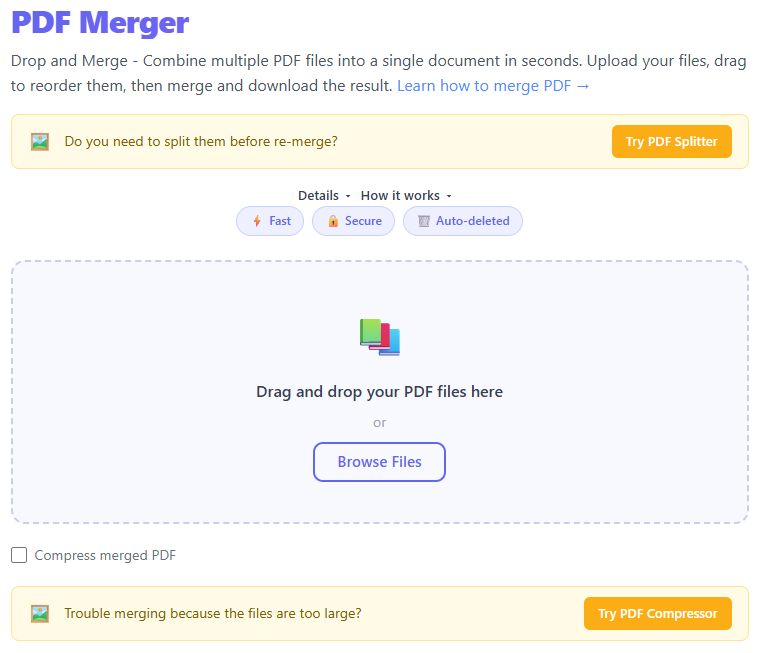
- Drag & drop or click to select multiple PDF files. The uploader accepts multiple files and shows a preview list.
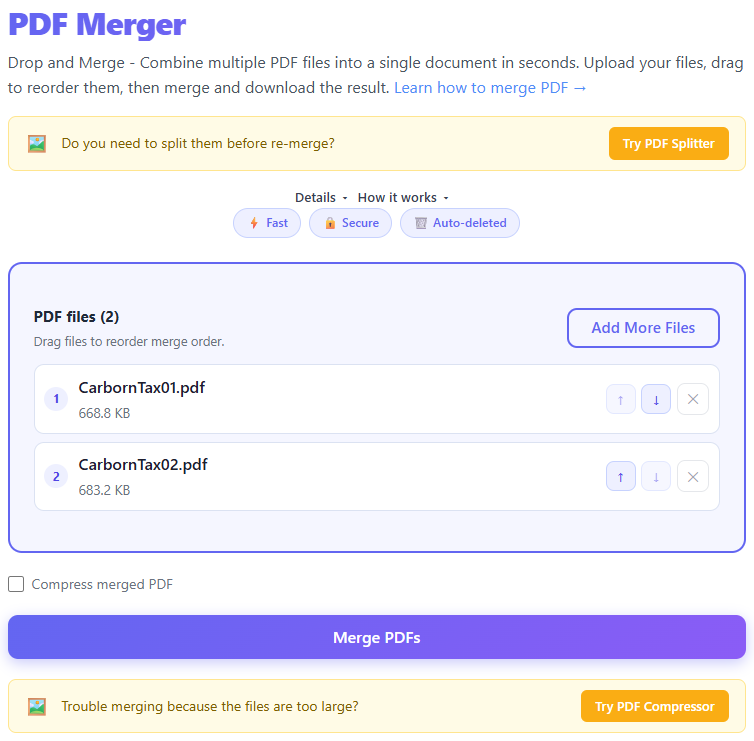
- Reorder files by dragging the list items into the desired sequence.
- Optionally remove any file before merging.
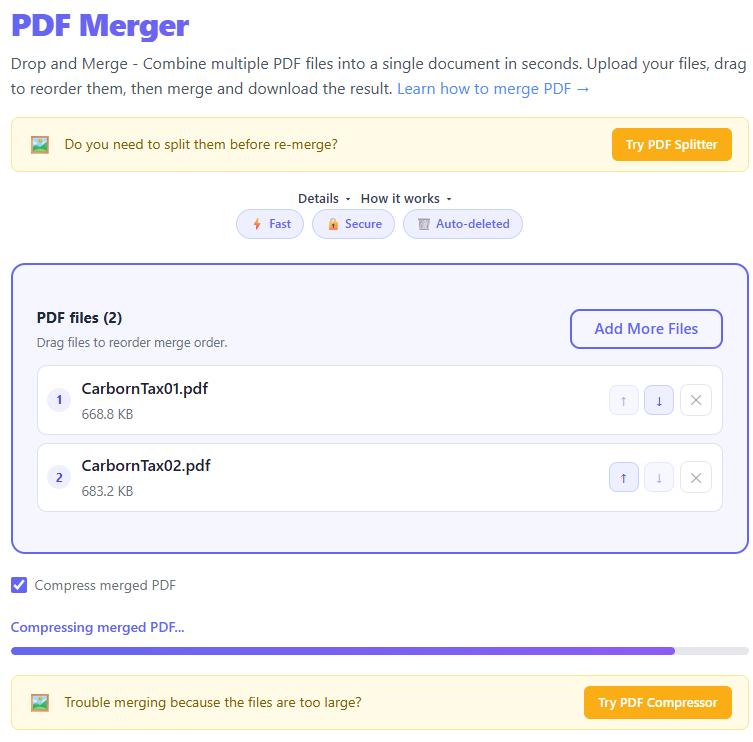
- Click Merge — the tool processes the PDFs and offers a single merged download when finished.
Screenshots
The screenshots below are taken from the live UI and illustrate the key steps.
Upload & list
Reorder files
Merge progress and download
Reordering Strategies
Before clicking Merge, the file list gives you full control over page order. Here are practical strategies:
- Chronological order: For meeting minutes or project logs, drag files to match the date order you want.
- Front-to-back assembly: Place a cover page first, followed by body content, then appendices last.
- Interleaving: For separately scanned odd/even pages, reorder so pages alternate correctly.
- Selective removal: Remove any wrong file from the list before merging.
Tips for a Clean Merge
- Check page orientation before merging; rotate pages if consistency matters.
- Verify page counts in the preview list to confirm you included everything.
- Use consistent PDF versions; very old PDFs may behave unexpectedly.
- Large file merges can take longer — watch the progress indicator.
Privacy
The PDF Merger processes files for a short period (e.g., 30 min) before automatic deletion to protect privacy. Download the merged PDF as soon as it is ready.
Frequently Asked Questions
Is there a limit on how many files I can merge at once?
The tool supports merging up to 20 files in a single operation. For very large batches, consider merging in smaller groups.
Will embedded hyperlinks be preserved?
Internal links within each PDF are generally preserved, but links to specific page numbers may need updating after merging.
Can I merge password-protected PDFs?
If a PDF is protected with restrictions, the merge tool cannot process it unless you remove the restriction with a password you own.
Does merging affect image quality?
No — the merge combines raw PDF page content without re-rendering or recompressing images.
What if the merged PDF is very large?
There is no hard output size limit; browser memory may limit very large operations on older devices.
Can I edit the merged PDF after downloading?
Yes — the resulting PDF is standard and can be edited with common PDF editors.
Published by THRJ Tech