Meme Generator Guide — Create and Download Custom Memes for Free
A complete guide to creating memes with the Meme Generator on THRJ. This walkthrough covers uploading images, adding text layers, positioning and styling captions, and exporting your final meme — all in your browser with no sign-up required. Open the Meme Generator
Why Make Your Own Memes?
Memes are one of the most effective and widely shared forms of visual communication on the internet. They work for humor, commentary, marketing, internal team communications, and social media engagement. While countless meme-sharing platforms exist, creating your own custom meme gives you full control:
- Brand-safe content: Use your own photos, company mascots, or custom imagery that fits your brand guidelines.
- Topical relevance: React to current events or industry news with a format that resonates immediately.
- No watermarks: Many meme generators add their logo to exports. THRJ's tool does not — what you create is entirely yours.
- Privacy: Your images stay on your device and are never uploaded to a third-party server.
- Custom text: You control font size, color, placement, and all the copy — no template restrictions.
Quick Steps
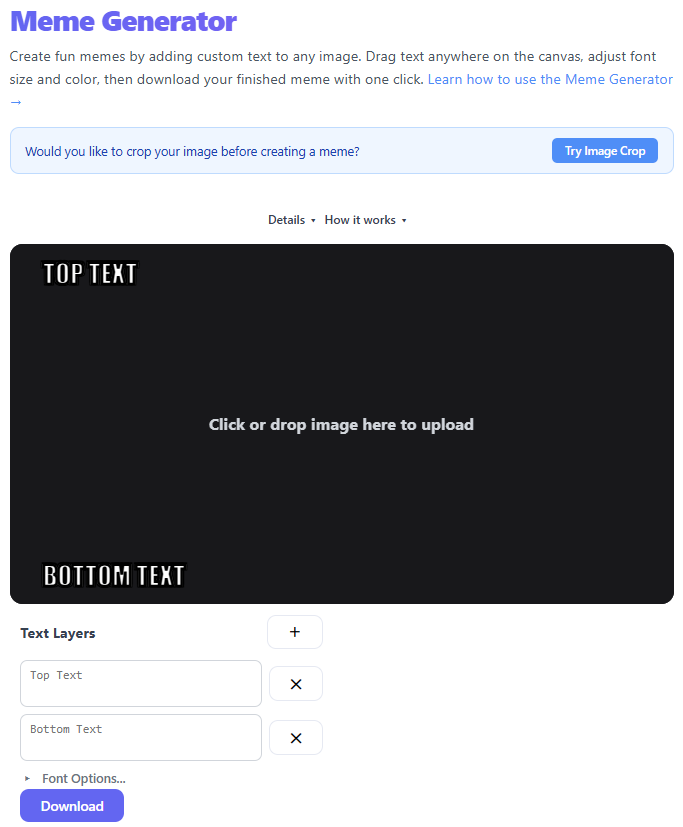
- Open the Meme Generator (Tools → Meme Generator) or visit
/image-meme-generator. - Upload an image by clicking the preview area or dragging a file onto it.
- Add text layers using the + button; type your captions and drag each layer to position it on the image.
- Use the Advanced controls to change font size and color, and use drag handles to fine-tune placement.
- Click Download to export a PNG of your meme with the text composited onto the image.
Step-by-step with screenshots
1. Upload an image
Click or drop to load an image. The canvas will display a live preview.
2. Add text layers and position
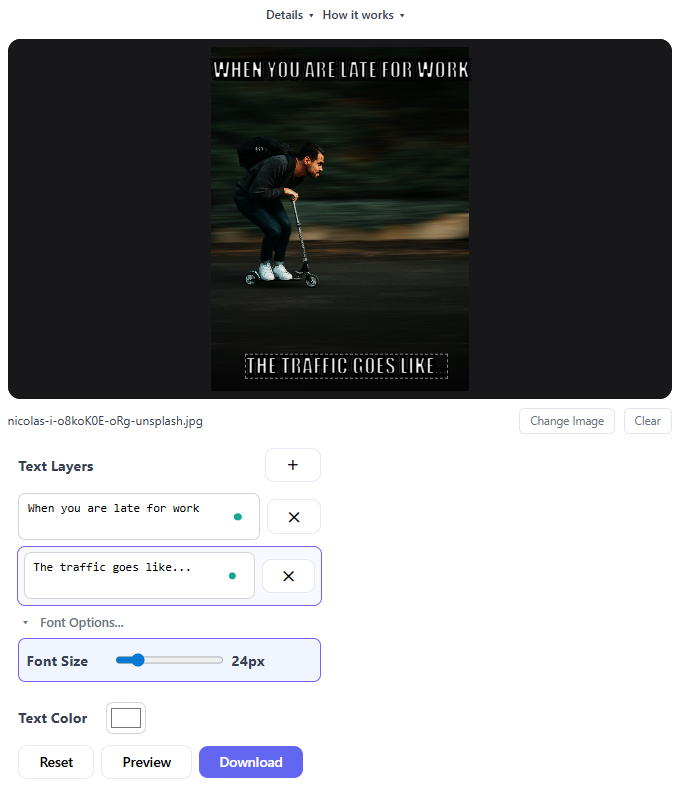
Click the + button to add a new text layer. Type into the layer panel and drag the overlay directly on the canvas to place it. Use multiple layers for title, subtitle, and small annotations.
3. Style and size text
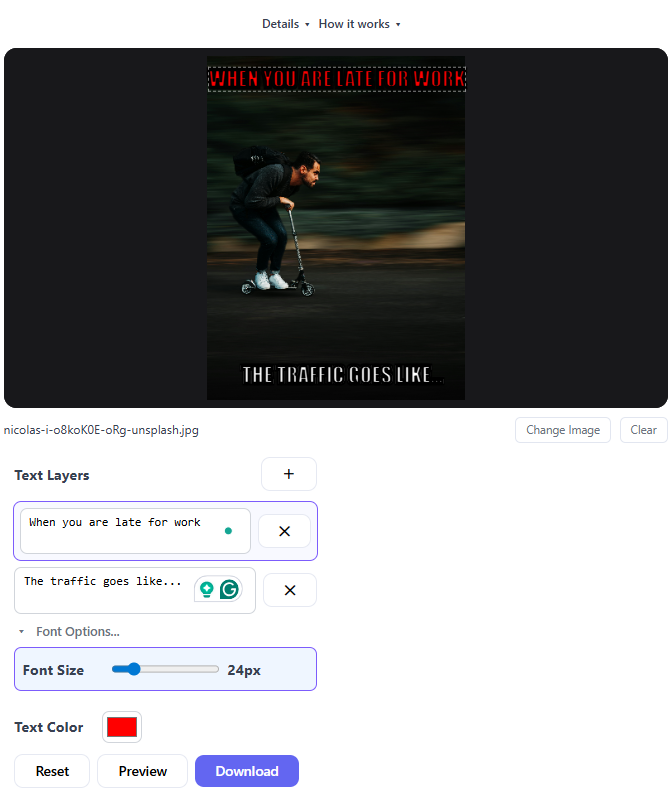
Open the Advanced panel to adjust font size and text color. Use stroke/shadow (if available) or high-contrast colors to keep text readable.
4. Export your meme
Click Download to generate a PNG. The text is merged onto the image on an offscreen canvas for a single downloadable file.

Tips & FAQs
- Use short, punchy captions for classic meme styles and capitalize text for emphasis.
- Keep strong contrast between text and background; add outlines or shadows if the text blends into the image.
- All composition occurs client-side — your image and text do not leave your device unless you choose to upload or share.
Published by THRJ Tech