Image Crop Guide — Crop, Rotate, and Frame Photos Directly in Your Browser
A complete walkthrough for using the Image Crop tool on THRJ. This guide explains the UI, key controls, and step-by-step instructions with screenshots. Whether you need to remove an unwanted background edge, produce a square crop for Instagram, or reframe a portrait, THRJ's browser-based crop tool has you covered. Open the Crop Image
What Is Image Cropping?
Image cropping is the process of selecting a rectangular region of an image and discarding everything outside that region. It is one of the most fundamental photo editing operations and is used daily by content creators, marketers, social media managers, photographers, and developers.
Common reasons to crop an image include removing unwanted elements from the edges, reframing a subject to improve composition, resizing to a platform's aspect ratio, extracting parts of screenshots, or preparing product images for e-commerce.
Video walkthrough
Quick Steps
- Open the Image Crop tool from the main menu (Tools → Image Crop) or visit
/image-crop. - Drag & drop an image onto the crop area or click to browse and select a file.
- Drag the crop overlay to frame the portion you want to keep. Use aspect ratio presets or Free mode for custom cropping.
- Adjust zoom (Alt + mouse wheel works), rotate, or flip the image to fine-tune the framing.
- Click Preview to generate the cropped image, inspect it, then click Download to save the PNG.
Step-by-step with screenshots
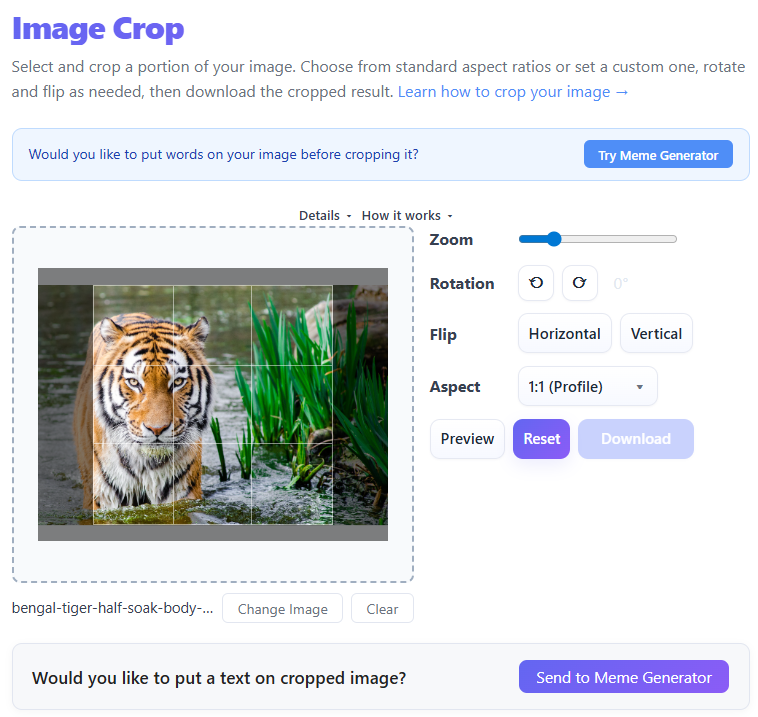
1. Load an image
Click the crop area or drag an image file onto it to load. The image appears inside the crop window with a draggable selection box.
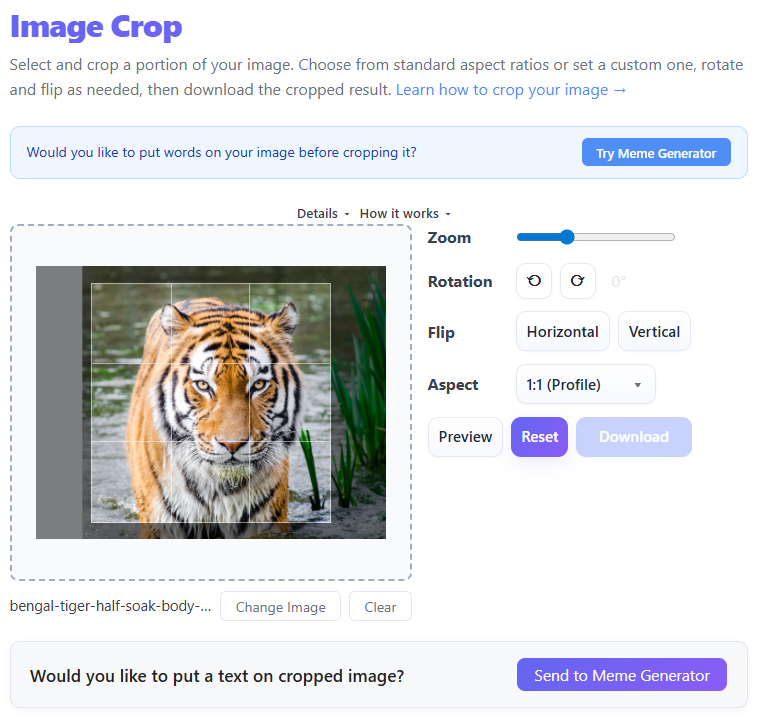
2. Choose aspect & select region
Pick an aspect ratio from the dropdown (1:1, 16:9, 4:5) or choose Free for unconstrained cropping. Drag the corners to resize the selection or move it to reposition the crop.
3. Zoom, rotate, flip
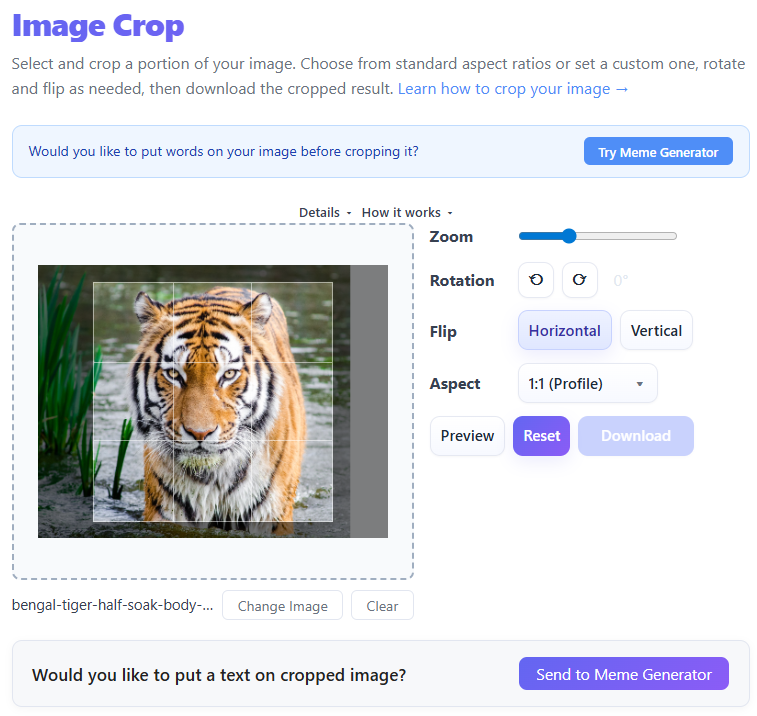
Use the Zoom slider or hold Alt + scroll to zoom the image inside the crop window. Use rotate buttons for 90° steps or enter a custom angle. Use Flip to mirror horizontally or vertically.
4. Preview & download
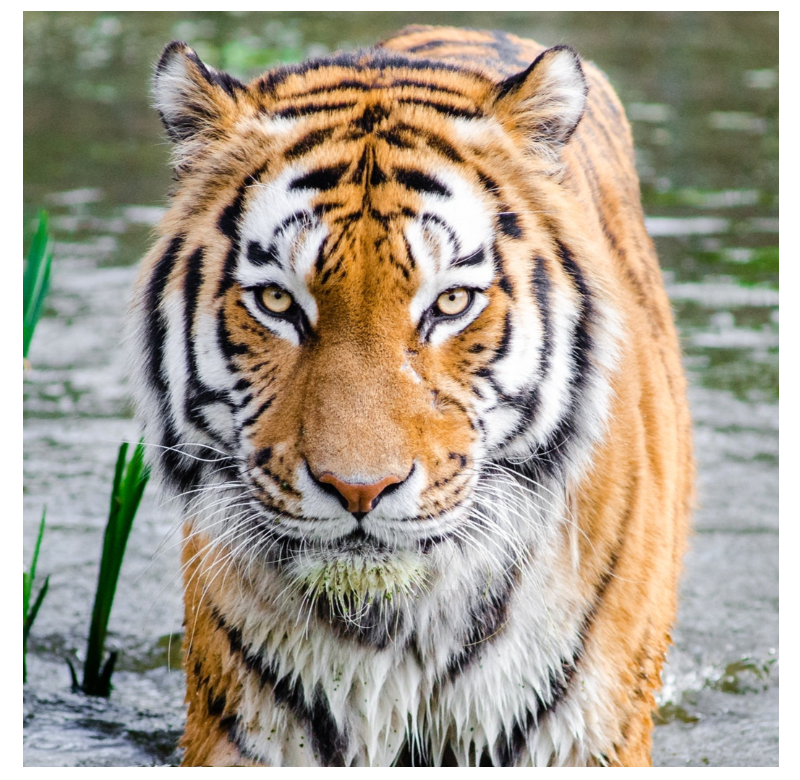
Click Preview to render the cropped region and inspect it in the preview dialog. When satisfied, click Download to save the cropped PNG.
Tips & FAQs
- All processing runs in your browser — your image is not uploaded to our servers.
- Supported image formats: any format your browser supports (JPEG, PNG, WebP, GIF, etc.). Output is PNG.
- If the Download button is disabled, click Preview first to generate the output.
- Use presets (Instagram, YouTube, Profile) for common target sizes.
Aspect Ratio Guide for Popular Platforms
| Platform / use | Aspect ratio | Pixels (recommended) |
|---|---|---|
| Instagram square post | 1:1 | 1080 × 1080 |
| Instagram portrait post | 4:5 | 1080 × 1350 |
| Instagram Stories / Reels | 9:16 | 1080 × 1920 |
| Twitter / X post image | 16:9 | 1200 × 675 |
| YouTube thumbnail | 16:9 | 1280 × 720 |
| Facebook cover photo | 205:78 (~2.63:1) | 820 × 312 |
| LinkedIn profile banner | 4:1 | 1584 × 396 |
| Profile picture (most platforms) | 1:1 | 400 × 400 minimum |
| E-commerce product (Amazon) | 1:1 | 1000 × 1000 minimum |
| Blog hero image | 16:9 | 1200 × 675 |
Cropping Techniques for Better Composition
Use the rule of thirds, leave headroom/look room for portraits, remove distractions while preserving context, and straighten horizons when needed.
Using the Rotate and Flip Controls
- 90° rotation: Quickly correct orientation.
- Custom angle rotation: Straighten a horizon or correct tilt.
- Horizontal flip: Create mirror compositions.
- Vertical flip: Use for creative effects or scanner corrections.
Frequently Asked Questions
Does the crop output keep EXIF metadata? The output is a PNG canvas export, which does not include original EXIF data (useful for privacy).
Can I undo a crop? You can reload the original image at any time to re-do the crop.
Why is my output in PNG when my input was JPEG? The crop tool exports to PNG to avoid recompression artifacts. If you need JPEG, use the Image Converter.
Can I crop with a fixed pixel size? Set an aspect ratio then use the Image Resizer to scale to exact pixels.
Published by THRJ Tech