Image Collage Guide — Create Beautiful Photo Grids in Your Browser
A complete walkthrough for using the Image Collage tool on THRJ. This guide explains the UI, key controls, and step-by-step instructions with screenshots so you can create stunning photo grids without installing any software. Open the Image Collage
What Is an Image Collage?
An image collage is a single composed image made from multiple photos arranged into a grid or tiled layout. Collages are widely used on social media, blogs, portfolios, and presentations to tell a visual story using several photos at once. Rather than posting five photos individually, a collage lets you share them as a single, cohesive piece of content that looks polished and intentional.
Creating a good collage used to require desktop software like Photoshop or complex apps with steep learning curves. THRJTech's Image Collage tool changes that by doing everything directly in your browser — no download, no installation, no account required.
Why Use a Browser-Based Collage Maker?
Most dedicated collage applications are either paid, ad-heavy, require account creation, or are only available on specific operating systems. A browser-based tool solves all of these problems at once:
- Works on any device — desktop, tablet, or mobile. As long as you have a modern browser, you have the tool.
- No installation — launch instantly from any link, ideal for one-off tasks.
- Privacy-friendly — your photos never leave your device. All composition happens locally on your machine.
- Free — no subscriptions, no credits, no limits.
For anyone who regularly needs to produce social media content, product listings, event recaps, travel journals, or real estate photo grids, a browser-based collage maker is one of the most practical tools to have bookmarked.
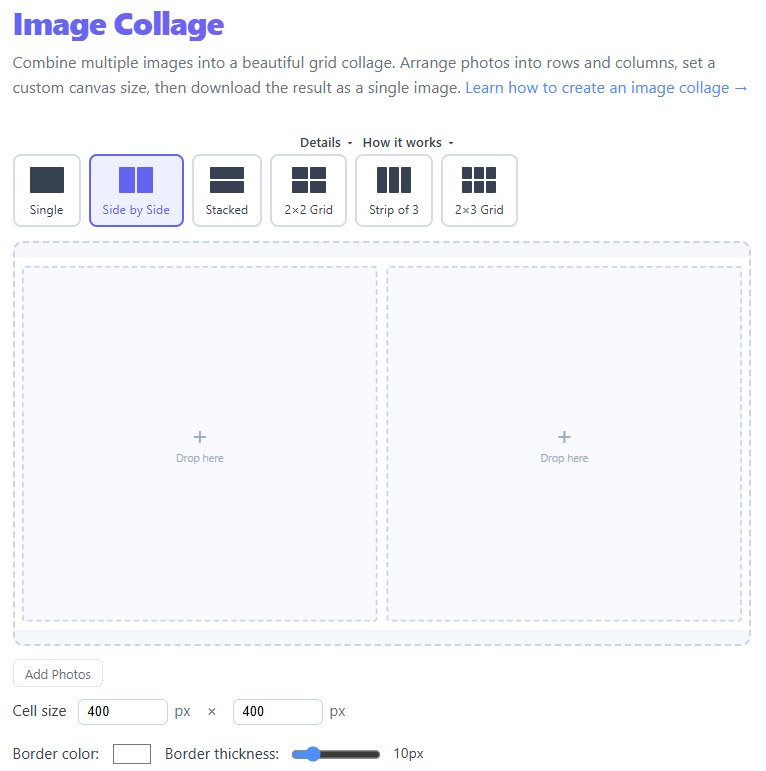
Quick Steps
- Open the Image Collage tool from the main menu (Tools → Image Collage) or visit
/image-collage. - Add images by dragging files into the drop zone or click to browse and select multiple files.
- Set the grid: choose rows and columns, adjust spacing and border color as needed.
- Reposition each image by dragging inside its cell; use zoom/pinch to change framing.
- Click Collage and Preview to inspect the assembled result, then Download to save the final image.
Step-by-step with screenshots
- Select a template
- Drag & drop or browse to add images
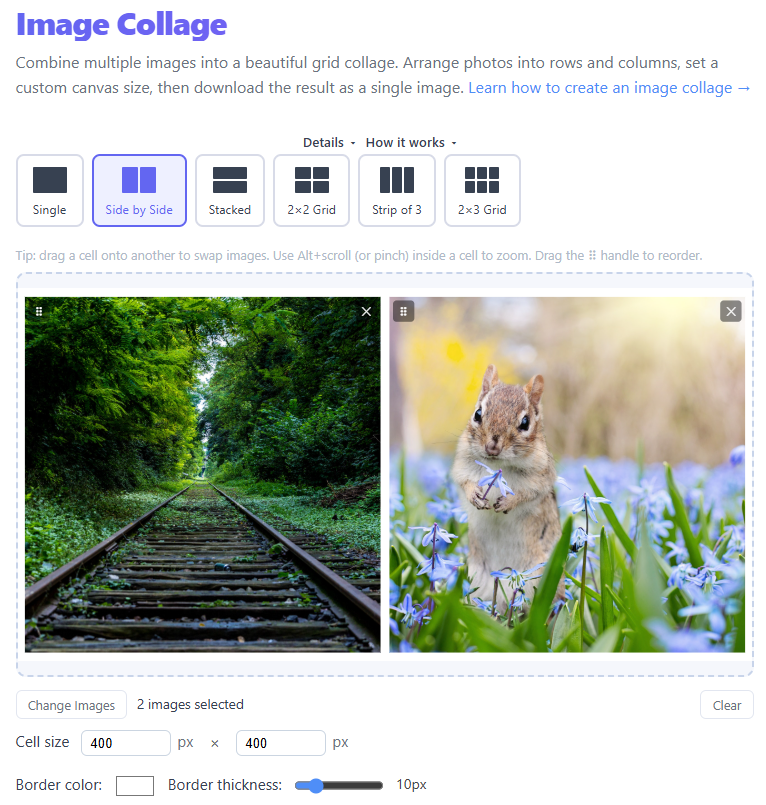
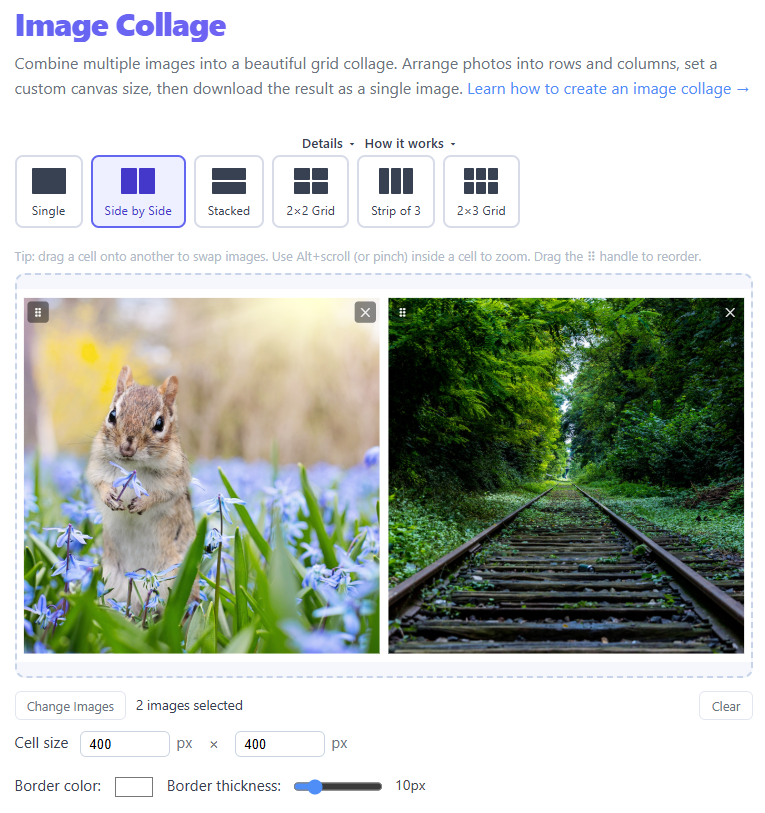
- Swap images if needed by drag and drop
- Change border color and width as desired then download the collage.
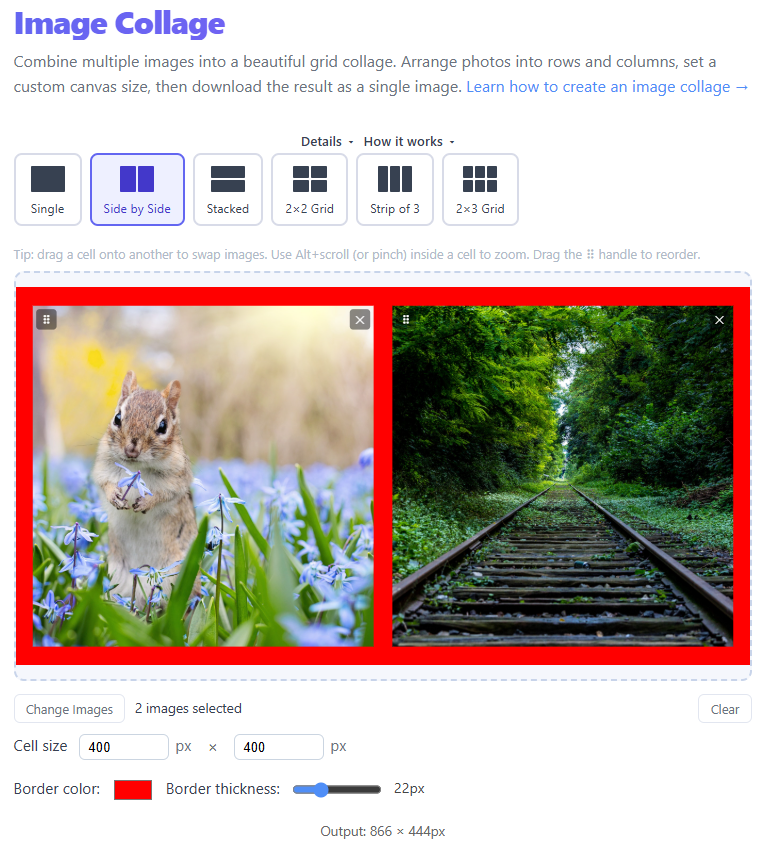
- Finalize the collage to render a single raster image and download it as a PNG (or convert to JPEG externally if you need smaller files).
Tips & FAQs
- All composition runs in your browser — images remain on your device unless you explicitly upload or share them.
- For social posts, aim for a canvas width between 1200–2048px for a good balance of quality and file size.
- If an image looks soft after export, use a higher-resolution source image or increase the export canvas size.
- Animated sources (GIF/WebP) are flattened to a single frame during export.
Common Use Cases
Social media content: Instagram carousels and Facebook albums perform well as collages. A 2×2 or 3×2 grid is ideal for a square or landscape post.
E-commerce product listings: Show a product from multiple angles in a single hero image. Retailers often use a 2×3 grid with different color variants.
Travel and event recaps: Combine a dozen highlights into a wall poster or printable card. Portrait orientation with a 3-column grid works well for printed photo books.
Real estate: Present a property's main rooms, exterior, and floor plan side-by-side in a clean grid for listings or marketing brochures.
Year-in-review graphics: A popular end-of-year format is a 3×4 grid where each cell represents one month's highlight. This format performs extremely well on social platforms.
Choosing the Right Grid Layout
The number of rows and columns you choose directly affects how each photo reads. Here are some general guidelines:
- 2×2 (4 photos): Classic square quad. Great for before/after pairs or four-season comparisons.
- 2×3 (6 photos): Portrait-oriented grid suits Instagram Stories or A4 print.
- 3×3 (9 photos): A popular square grid for product showcases.
- 1×3 (3 photos, horizontal strip): Timeline-like layout, ideal for step-by-step visuals or progress shots.
If your photos are a mix of landscape and portrait orientations, use the individual cell zoom and pan controls to crop each one to fit without distortion.
Exporting for Different Platforms
Different platforms have different recommended image sizes and aspect ratios:
| Platform | Recommended size | Aspect ratio |
|---|---|---|
| Instagram post | 1080 × 1080 px | 1:1 |
| Instagram landscape | 1080 × 566 px | 1.91:1 |
| Twitter/X post | 1200 × 675 px | 16:9 |
| Facebook post | 1200 × 630 px | ~1.91:1 |
| LinkedIn post | 1200 × 628 px | 1.91:1 |
| Print (A4 at 150 dpi) | 1754 × 1240 px | A4 |
When exporting from the THRJ collage tool, set the canvas dimensions to match your target platform before clicking Collage and Preview.
Frequently Asked Questions
Can I use photos from my phone? Yes. On mobile browsers, the file picker opens your camera roll directly. JPEG, PNG, WebP, and HEIC images are all supported (HEIC conversion depends on browser support).
What is the maximum number of photos I can use? There is no hard limit enforced, but very large grids with high-resolution images may use significant browser memory. For best performance, keep source images under 5 MB each.
Can I add text or stickers to the collage? The collage tool focuses on grid composition. For overlaying text, use the Meme Generator on the resulting collage image.
Is the output always a PNG? Yes. The canvas is exported as a PNG for lossless quality. If you need a JPEG for smaller file size, run the output through the Image Converter or Image Resizer afterwards.
Why does my collage look blurry after uploading to Instagram? Instagram recompresses uploads. To minimize visible quality loss, export your collage at 1080px or wider and use PNG or a high-quality JPEG.
Published by THRJ Tech